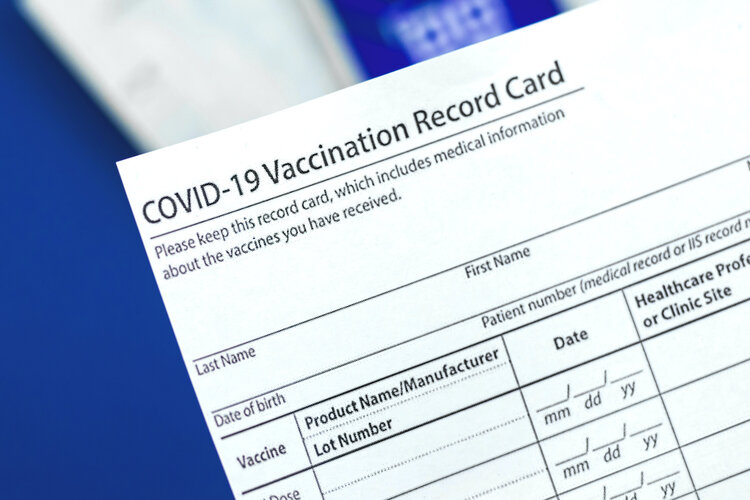
The vaccination drive against Covid-19 in India has proliferated to an extent where the country has a record of administering approx 1 crore doses in a day. The Central government has developed CoWIN and Aarogya Setu mobile based applications which have been at the forefront of fighting the battle against Covid-19.
However, since the vaccination drive attained velocity, people got a scope of developing and delivering fake vaccination reports across 29 countries, including India. "The vaccination certificates were being sold at around Rs 6,000 per document", according to CheckPoint research. Now in India, smartphone users can check the certificate(s) validity with these steps.
Step 1: Visit the official website of CoWIN (cowin.gov.in) and locate the ‘Platform’ option at the top right. Here, select ‘Verify certificates’ or users can directly visit www.verify.cowin.gov.in.
Step 2: A green button saying 'Scan QR' will appear. It is to be noted that the platform will require camera permission to function.
Step 3: The button will activate your camera and allow you to scan the QR code given on the bottom right corner of your certificate.
Step 4: If your certificate is authentic, the screen will display an affirmation saying ‘Certificate Successfully Verified.’ The screen will display personal information such as name, age, gender, certificate ID, vaccine name, etc. In case the certificate is fake, a message box will appear that reads 'Certificate Invalid'.